 |
by Zweibieren 3.3 (2,137zb Mar 30, 2021) |

Using FontViewer
FontViewer displays a list of all available fonts. See text in each font by entering a sample text and choosing size and style. To compare fonts adjacently, click checkboxes and sort on the checkbox column.
Starting FontViewer
FontViewer is deployed as InstallFontViewer.jar. To install FontViewer in a directory, move InstallFontViewer.jar to that directory and double-click it. It installs FontViewer.jar; to run FontViewer, double-click its jar.
FontViewer Window
FontViewer's window has three sections, labeled here in orange.

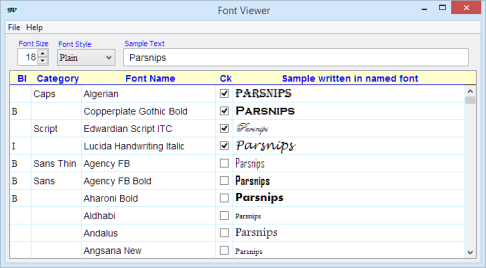
Table
By name, the columns are
- BI - Bold for Bold, I for italic. Values are relative to the plain font. Some bolds are bolder than others
- Category- General font category: serif, sans serif; symbol, etc. Useful for sorting. You can edit the categories or enter your own. See the Advanced section, below.
- Font Name - Most applications that let you choose a font will display these names.
- Ck - For sorting the candidates. As you view the fonts for a purpose, make check marks against the likely ones. When sorted on this column, the checked fonts will be listed at the very top.
- Sample ... - The sample text is shown in this row's font. Sorting on this column will sort by the visual length of the image. There is no good way to see samples of the symbol fonts.
Click a header to sort by that column. Drag the headers to rearrange the columns. Scroll through the table with the scroll bar. (Since generating images of the sample text takes time, the sample images may not keep up with your scrolling.)/p>
Top
Above the table are three widgets:
- Size controls the size of the text in the Sample column. To choose the size, click the arrows or type an integer.
- Style controls the style: plain, bold, italic, or bold&italic. (Some fonts are bold or italic variants in a family. These will be distorted when the Style is other than "plain.")
- Sample is the text shown for each font. The default text displays all letters and several of the most common digrams and trigrams.
Menu
A rudimentary set of options are offered, mostly dealing with the categories file. The keystrokes in italic may be typed at any time to perform the action of that menu item.
- Categories source - Report where the initial categories file came from.
- Load categories ... - Load additional categories from a chosen file.
- File / Save Ctrl+S - Save the current categories to the file they were loaded from.
- File / Save as - You are prompted for a file name; when you click Save the category information is saved into the chosen file. You can save the default category information in a file and then modify the categories.
- File / Exit - The application terminates. If you have modified the default categories, they will be saved into the file they came from. If they did not come from a file, you will be prompted for a file name.
- Help / Help F1- Displays this file in your usual browser.
- Help / Reset Ctrl+R- The sample text reverts to its original. A right-click on the sample-text widget will also popup a menu item with the reset option.
Usage: To choose a font
- Type an example of the text you want into the sample text area at the top.
- Set Size and Style to the ones you want.
- Click the header of the Category column to sort by categories. Scroll to the section with the category you want.
- Scroll thourgh the fonts looking for what you want. Click the check box of any likely candidates.
- Click the header of the checkbox column and scroll to the top of the checkbox column, where the checked rows are gathered together.
- Pick a font, click its name, and type control-C.
- Click in the application where you want the file name and type control-V. The font name will be pasted.
The Categories File
Data for the first two columns come from fontcategories.txt. A default version of the file is installed by InstallFontViewer. Or a series of fi At run-time, FontViewer looks for the categories file in this order:
- file named by the first argument on the command line. (This requires invoking via a command line as in java -jar FontViewer.jar path/of/fontcategories.txt )
- ./fontcategories.txt - in the same directory as FontViewer.jar
- {user.home}/FontViewer/fontcategories.txt
- physpics.com/Java/apps/fontviewer/fontcategories.txt
- fontcategories.txt embedded in FontViewer.jar
You can invent your own font categories. To start with the defaults, use the File/SaveAs menu item to store the existing categories in a convenient location. Then supply that location as an argument to FontViewer, as described just above.
Revise the categories by treating the category field as text. The usual text operations apply, including control-C for copy and control-V for paste.
After revising the categories, click the File/Save option, your file will be updated with the new categories. IN addition, the categories are saved automatically every ten minutes and when the program exits.
Enjoy
Send comments to ZweiBieren@PhysPics.com.
TODO
String msg = "You can modify the first two table columns;" //=
+ "<br>but FontViewer is currently running under" //=
+ "<br><b>Java WebStart</b>, " //=
+ "so your changes cannot be saved."; //=
// JLabel tMsg = new JLabel("<html>"+msg+"</html>"); //=
// JOptionPane.showMessageDialog(this, tMsg, "Saving category data", //=
// JOptionPane.INFORMATION_MESSAGE, ICON64); //=
tellUser("Not saving category data", msg); //=
Copyright © 2021 ZweiBieren, All rights reserved.